Delete the Backup for This Iphone and Try Again
Locate backups of your iPhone, iPad, and iPod touch
Find a list of your iOS or iPadOS backups on your Mac, PC, and iOS or iPadOS device. Learn how to delete backups, copy them, and more.
- Find backups stored on Mac or PC
- Delete or copy backups stored on Mac or PC
- Find and manage backups stored in iCloud
Observe backups stored on your Mac or PC
To avert ruining any of your backup files, here's what you should know:
- The Finder and iTunes save backups to a Backup binder. The location of the Backup binder varies by operating organization. Though you lot can copy the Backup folder, you should never motion it to a different folder, external drive, or network bulldoze.
- Don't edit, relocate, rename, or extract content from your backup files. For case, to restore from a relocated backup file, y'all demand to move the backup file back to where it was in the Backup folder or the file won't work. Backups serve equally a rubber copy of almost all of your device'south information and settings. So while you might be able to view or access a backup file'south contents, the contents unremarkably aren't stored in a format that you tin read.
Search for the backup folder on your Mac
To discover a listing of your backups:
- Click the magnifier
 in the menu bar.
- Type or copy and paste this: ~/Library/Application Support/MobileSync/Backup/
- Printing Return.
- Select the Backup binder nether Folders.
Find a specific fill-in
On a Mac with macOS Catalina or afterwards:
- Open the Finder. Click your device.
- Nether the General tab, click Manage Backups to see a listing of your backups. From hither, correct-click on the fill-in that yous want, then choose Show in Finder, or select Delete or Annal.
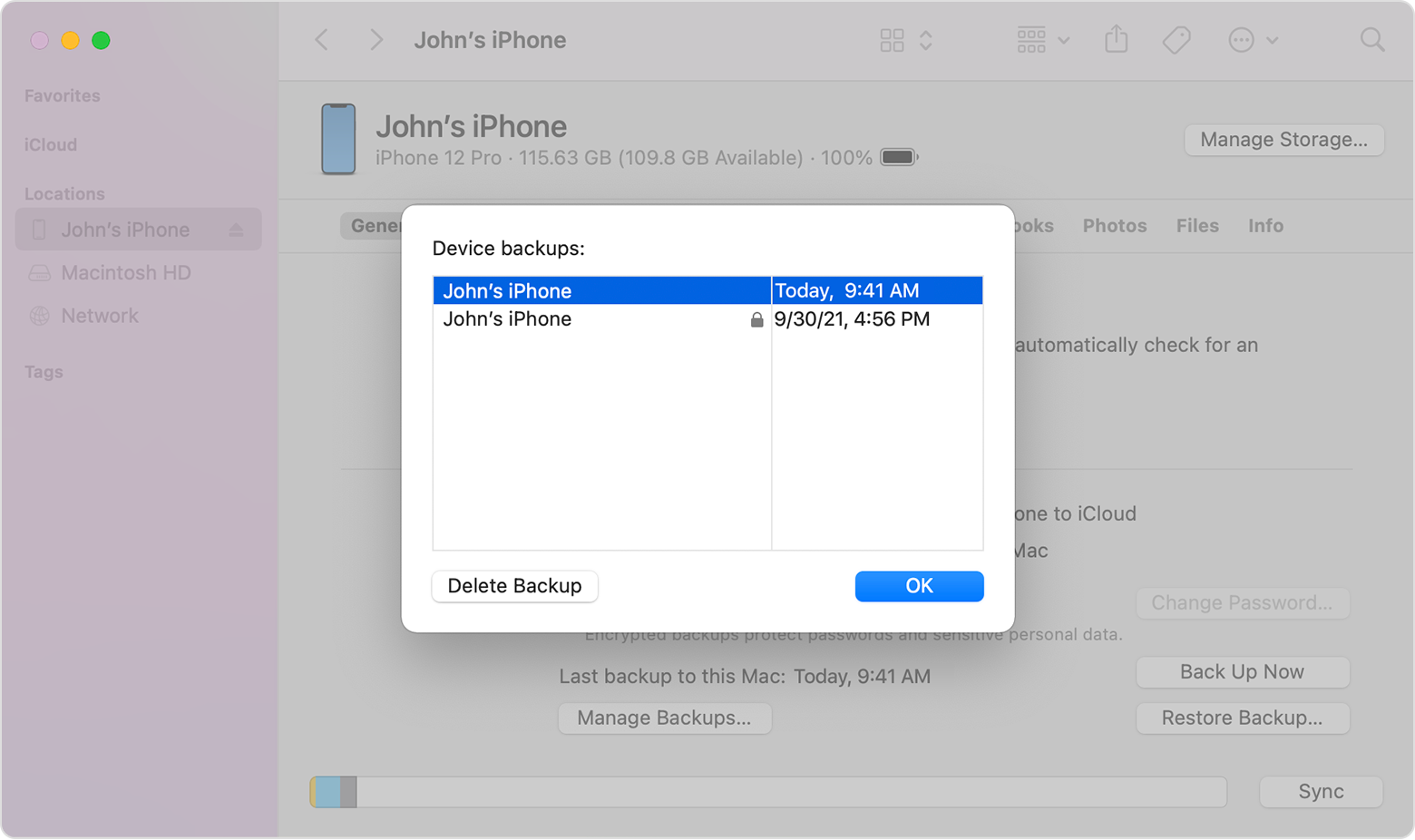
- Click OK when you're finished.
On a Mac with macOS Mojave or earlier, or on a PC:
- Open iTunes. Click your device.
- Choose Preferences, then click Devices. From here, correct-click on the fill-in that y'all want, then choose Evidence in Finder, or select Delete or Archive.
- Click OK when you're finished.
Search for the fill-in folder on Windows 8 or ten
- Find the Search bar:
- In Windows 8, click the magnifying glass in the upper-correct corner.
- In Windows ten, click the Search bar adjacent to the Showtime push button.
- In the Search bar, enter %appdata%. If you don't see your backups, enter %USERPROFILE%.
- Press Return.
- Double-click these folders: "Apple" or "Apple tree Computer" > MobileSync > Backup.
Delete or copy backups on your Mac or PC
Don't edit, relocate, rename, or extract content from your backup files, because these actions might ruin the files. Y'all can brand copies of your backups or delete backups that you no longer need.
Copy backups to another location
If you demand copies of your backups, y'all can notice the Backup folder and copy the entire folder (not merely part of information technology) to some other identify, like an external bulldoze or network-storage location.
Time Machine automatically copies your Backup folder when you lot support the Home folder on your Mac.
Delete backups
On a Mac with macOS Catalina or later:
- Open up the Finder. Click your device.
- Under the Full general tab, click Manage Backups to see a listing of your backups. From here, right-click on the backup that you lot want, and then select Delete or Annal.
- Click Delete Backup, so ostend.
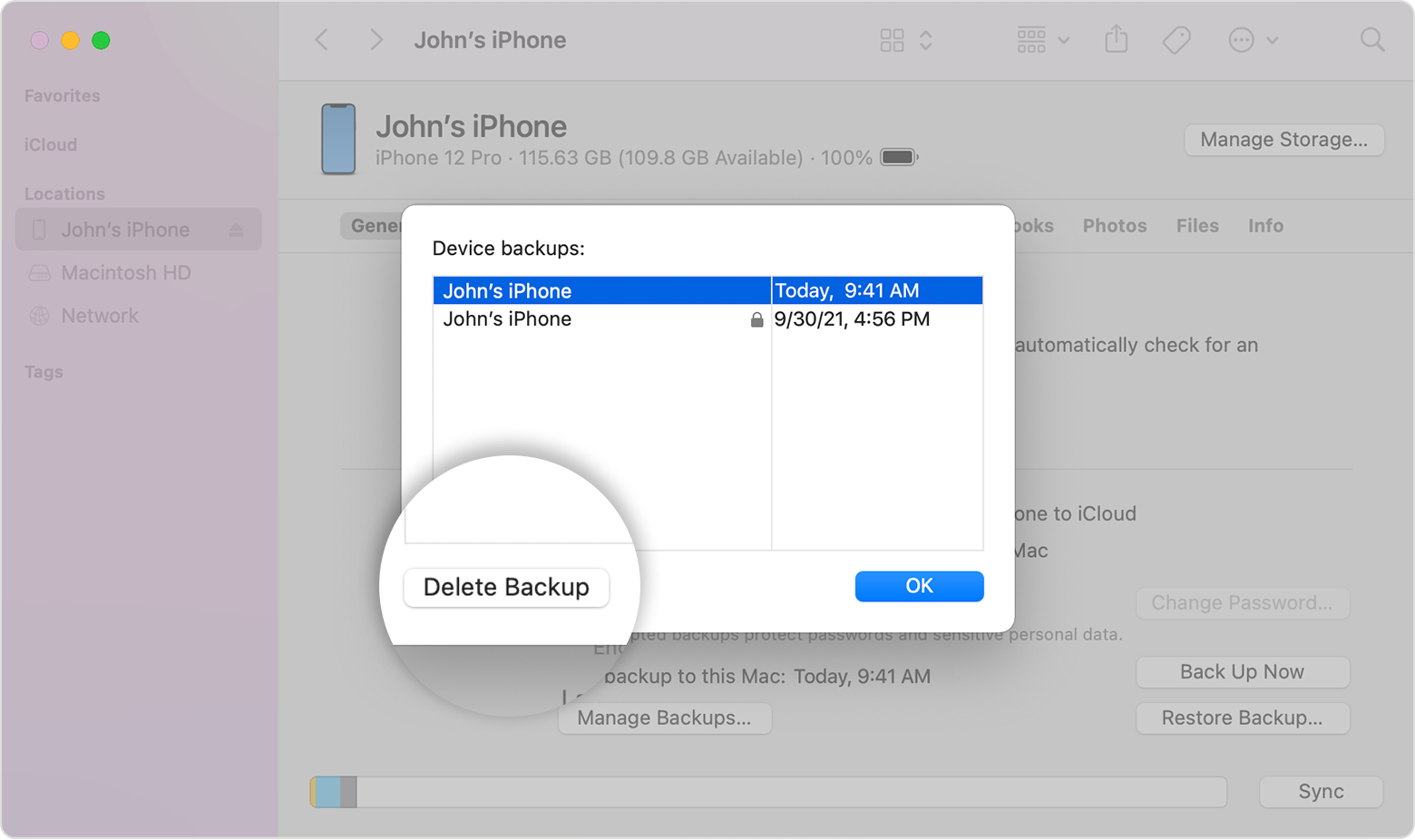
On a Mac with macOS Mojave or earlier, or on a PC:
- Open iTunes. Click your device.
- Choose Preferences, and so click Devices. From here, right-click on the backup that y'all want, then choose Delete or Archive. Click OK when you're finished.
- Click Delete Backup, so ostend.
Discover and manage backups stored in iCloud
If you use iCloud Fill-in, you won't find a list of your backups on iCloud.com. Here's how to find your iCloud backups on your iOS or iPadOS device, Mac, or PC.
On your iPhone, iPad, or iPod touch:
- Go to Settings > [your name] > iCloud.
- Tap Manage Storage, then tap Backups.
- Tap a fill-in to see more details virtually it, choose which information to back up, or delete the fill-in.
Y'all can choose which content to back upwardly only from the Settings menu of the device that stores that content. For example, while you can view your iPad backup from your iPhone, you can choose which iPad content to back up only from the Settings card of your iPad.
On a Mac with macOS Catalina or later:
- Choose Apple tree menu > Arrangement Preferences.
- Click Apple ID.
- Click iCloud.
- Click Manage.
- Select Backups.
On a Mac with macOS Mojave or earlier:
- Choose Apple menu > System Preferences.
- Click iCloud.
- Click Manage.
- Select Backups.
On your PC:
- Open up iCloud for Windows
- Click Storage.
- Select Backup.
Learn more nearly how to delete or manage iCloud backups from your Mac or PC.
Information about products non manufactured by Apple tree, or contained websites not controlled or tested by Apple, is provided without recommendation or endorsement. Apple assumes no responsibility with regard to the selection, performance, or use of third-party websites or products. Apple makes no representations regarding third-party website accurateness or reliability. Contact the vendor for additional information.
Published Date:
gonzalezhinem1983.blogspot.com
Source: https://support.apple.com/en-us/HT204215
0 Response to "Delete the Backup for This Iphone and Try Again"
Post a Comment