Clip Studio Paint Manage Works Art Wont Move or Delete
Using the Service
How to apply the export and publishing features
Prune STUDIO Quick Manual
Introduction
Windows/macOS version
Subsequently launching, the "CLIP STUDIO Get-go" screen will exist displayed. Application and service information tin can exist checked here.
Upon startup, choose whether to download boosted materials from the cloud.
(Downloading may take some time to consummate, depending on the connection status etc.)
Please download these at an appropriate time, following the instructions.
*Depending on your OS or version, the layout and functions may differ. Please update to the latest version.
Side menu
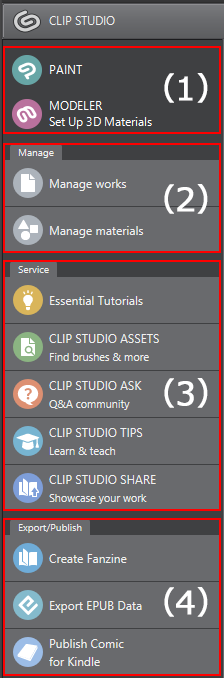
(1) Application launcher
Starts the software. In the iOS version, "Return to Paint" will exist displayed, endmost the "CLIP STUDIO" dialog subsequently choice.
(two) Manage
- Manage works
Check and manage your saved works, and sync to the cloud.
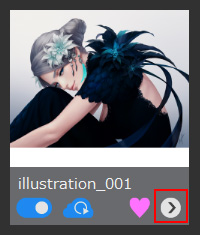 Displays a context menu to manage and control works via the (>) push of the displayed work.
* For more than data virtually the cloud, please read the "User'southward Guide to the Cloud".
* On the Windows and macOS versions, if y'all double-click a work, the "Manage works" screen volition brandish. You tin can utilise this to do the same operations equally the context carte. You tin can as well bank check exported data (Kindle format, EPUB data, fanzine data). - Manage materials *Windows/macOS version only
Check and manage available materials. The displayed information is linked with the application's "Material Palette". Cloth catalogs can exist managed also.
*For information on material catalogs, refer to "Guide to Creating a Cloth Catalog" besides.
Error letters
The following message may exist displayed when editing materials: "Material database is beingness used right now, so this command cannot be executed. Please wait for a while and effort it again."
This is displayed when materials are edited while the material is updating.
To solve this, effort editing at a later fourth dimension, or close all running Clip STUDIO software and effort again.
[ASSETS] "Acquire latest information" Push button
The latest information on the displayed material (material catalog) will exist retrieved from "CLIP STUDIO Avails".
An icon will exist displayed when an update is available.
(3) Services
- Essential Tutorials
Official lessons and tutorials by Celsys to assist you offset creating your own comics and drawings, as well as observe techniques of professional artists. - CLIP STUDIO Assets Find brushes & more
Download materials with "CLIP STUDIO ASSETS".
* With the Windows/macOS version information technology is possible to publish materials as well. - CLIP STUDIO Enquire Q&A community
Consult with other creators on "Prune STUDIO ASK", the official Q&A community. - Clip STUDIO TIPS Learn & teach
Learn how to use the software, or teach and acquire useful tips and tricks on "CLIP STUDIO TIPS". - CLIP STUDIO SHARE Showcase your piece of work
With Clip Studio SHARE, you tin can publish your comics and illustration albums in an online viewer for easy reading.
(4) Export/Publish *Windows/macOS version only
This section links to services and functions for printing and publishing your work.
Menu bar

(ane) CLIP STUDIO Push button
Displays the showtime-up screen.
(two) Login (Button displaying the user proper name when logging in)
Displays the card related to CLIP STUDIO account data.
(three) Cloud bar
Shows used chapters of the cloud.
If you click this, the "Cloud" menu will display. Y'all can use this bill of fare to support or restore application settings. For more information nearly the cloud, please read the "User'due south Guide to the Cloud".
* You cannot back up or recover application settings on the iPad version.
(four) Communication (left and right arrow icon)
Displays the status of any data transfer (upload/download) beingness executed.
(5) Announcements (bell icon)
Displays the notification menu for news, notifications etc.
(6) Settings (Gear icon)
Displays the settings menu. The menu varies depending on the Bone.
Windows/macOS version
- Location of Materials
Change the location of the local salvage folder (directory path) that stores material data. - Download additional textile at present.
Some additional materials will only be downloaded every bit brandish data. This will download all information that has non yet been downloaded. - Download additional material at launch.
Upon launching Prune STUDIO, the program volition search for and download whatsoever additional materials on the deject. - Change Background Image of Start Screen
You can change the background paradigm of work history that shows on the get-go screen when you launch the program. - Maintenance bill of fare
Restores settings, repairs damaged data, etc.
* Generally, please execute but when instructions are given via the support or transmission etc.- Organize Works
If a work's data stored in "Manage works" > "This device" becomes corrupted, y'all can try to recover or restore it.
If successful, "This device" will brandish as normal. If unsuccessful, an error bulletin will pop up. - Organize Work Labels
If a label stored in "Manage works" > "This device" becomes corrupted, you can try to recover or restore it. - Organize Materials
Restores and repairs materials when the cloth information data etc. displayed in the "Manage materials" menu is corrupted.
If successful, the "Manage materials" bill of fare will be displayed usually; if it fails, an error bulletin volition be displayed.
* When organizing, "Reset boosted materials" will not be executed. - Organize Material Folders
Restores and repairs folders displayed in the "Manage materials" menu when they are corrupted. - Reset additional materials
Reset/restore materials that were installed with the installer then deleted or additional materials that were downloaded from the cloud. - Clear Brandish Settings of Confirmation Dialog
If executed when the "Do not show again" choice is selected, those setting volition be cancelled and turned off. - Do not transport anonymous usage log
Prune STUDIO may acquire usage logs for research (information that could identify an individual are never included).
When this setting is ON, usage logs volition not be sent. - Adjust the brandish size if the screen display is too large
If the text or images are too big and can't fit on the screen, cheque this box. - Set Kindle preview tool...
You can alter the directory path for the installed Kindle preview tool.
- Organize Works
iOS Version (iPad Version)
- Download additional material now.
Some boosted materials will only be downloaded as display data. This volition download all data that has not yet been downloaded. - Download additional material at launch.
Upon launching CLIP STUDIO, the program volition search for and download whatever additional materials on the cloud. - Maintenance menu
Restores settings, repairs damaged data, etc.
* Generally, please execute only when instructions are given via the support or manual etc.- Organize Materials
Restores and repairs materials when the fabric information data etc. displayed in the PAINT "Materia palettel" is corrupted. If successful, the material will be displayed normally; if it fails, an error message will exist displayed. - Organize Textile Folders
Restores and repairs folders displayed in the Paint "Material palette" when they are corrupted. - Reset additional materials
Reset/restore materials that have been deleted from the CLIP STUDIO Paint Materials palette or boosted materials that have been downloaded from the cloud. - Organize Works
Repairs and rebuilds work information data etc. displayed in the Prune STUDIO "Manage works" menu if information technology is corrupted. If successful, the "Manage works" bill of fare is displayed equally normal; if it fails, an error message is displayed. - Organize Work Labels
Restores and repairs labels when the material information data etc. displayed in the Clip STUDIO "Manage works" menu when they are corrupted. - Clear Display Settings of Confirmation Dialog
If executed when the "Do not show again" option is selected, those setting will be cancelled and turned off.
- Organize Materials
- Google Analytics settings
CLIP STUDIO may acquire usage logs for research (data that could identify an individual are never included). When this setting is ON, usage logs will not be sent.* The handling of usage log data is the same equally the CELSYS usage understanding under "Sending of Information and utilize of cookies". Please refer to the above for further details.
(7) Help (? Icon)
Displays assistance information.
gonzalezhinem1983.blogspot.com
Source: https://www.clipstudio.net/quickmanual/en
0 Response to "Clip Studio Paint Manage Works Art Wont Move or Delete"
Post a Comment